Before you start
By LookScene Editorial, AI-assisted drafting and editorial review.
Academic department directories serve a functional purpose: helping students, colleagues, and institutional visitors recognize faculty members across campus. Unlike speaker press kits prioritizing personal branding or corporate rosters emphasizing uniform company aesthetics, an academic directory demands clarity, visual consistency, and technical compliance. Submitting a photo that violates local content management system (CMS) guidelines forces web coordinators to request retakes or apply awkward crops. Preparing an acceptable submission requires confirming department specifications, staging an appropriate source photo, preserving recognizable likeness, and delivering the file within clear usage parameters.
Confirm Institutional Specifications Before Capturing Any Image
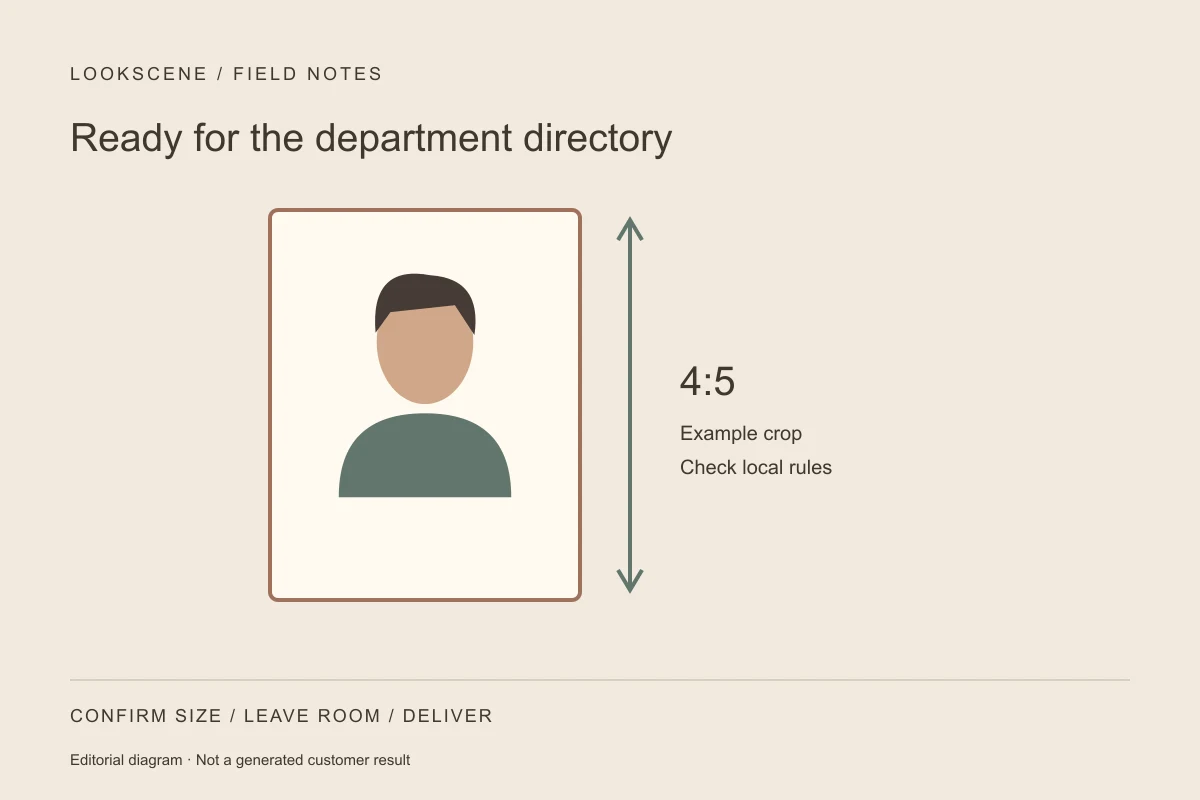
Higher education institutions enforce diverse technical and aesthetic parameters across their web properties. Never assume portrait standards from one institution apply to another. For example, the University of Texas at San Antonio (UTSA) Klesse College of Engineering outlines specific criteria for official directory profiles. Their guidelines request forward-facing, centered portraits formatted as JPG files at 400 × 500 pixels (a 4:5 ratio), captured in studio settings against designated backdrops, noting that noncompliant submissions may be rejected.
However, that 400 × 500 pixel specification is not a universal resolution across higher education. Other departments require square crops, transparent backgrounds, or uncompressed high-resolution files. Contact your department's web coordinator before shooting to confirm required dimensions, acceptable file formats (such as JPG or PNG), approved backdrops, and retouching rules.
Wardrobe and Staging: Professional Baseline and Privacy Boundaries
Selecting clothing for an academic portrait balances disciplinary culture with visual legibility. Standard attire typically ranges from tailored jackets to neat collared shirts or blouses. Solid, mid-tone colors photograph well against neutral surfaces, whereas fine repeating patterns can cause moiré artifacts on digital screens. Evaluating whether your role calls for business casual vs. formal headshots helps align your appearance with institutional norms.
Environmental backgrounds require strict adherence to privacy and intellectual property standards. Keep third parties and restricted research information out of frame unless the required permissions and destination rules explicitly allow them. A neutral interior wall, architectural stone, or a clean, softly blurred background prevents distractions. Keep lighting balanced and diffuse: avoid overhead fluorescent fixtures that cast harsh shadows under the eyes, and face an indirect light source, such as a large window or soft lamp.
Composition and Cropping: Accommodating Directory Grids
Departmental web templates rely on fixed grid systems governing portrait rendering across desktop and mobile screens. A portrait cropped too tightly around the jawline or crown leaves web managers with insufficient bleed margin when fitting the image into a container. Understanding how to navigate cropping profile photos for circle vs. square formats ensures facial features remain centered without losing the top of the head or shoulders.
Leave generous margin above the hair and below the collarbones during capture so editors can adjust aspect ratios cleanly.
| Evaluation Area | Common Submission Error | Department-Ready Practice |
|---|---|---|
| Framing | Tight selfie cutting off hair or shoulders | Centered, chest-up framing with headroom for CMS cropping |
| Background | Lab benches, students, or research notes | Plain studio backdrop or neutral wall without third parties |
| File Format | Raw camera files (.CR2) or mobile exports (.HEIC) | Standard web formats (.JPG or .PNG) at requested dimensions |
| Lighting | Strong backlighting or overhead fluorescent glare | Even, diffused frontal or 45-degree angle illumination |
| File Naming | Generic camera labels like IMG_0412.jpg | Standardized naming (e.g., lastname_firstname_dept.jpg) |
Visual Concepting versus Final Photographic Delivery
Planning a portrait often involves exploring how different hairstyles, necklines, or color palettes translate on camera. LookScene offers personal AI photo styling for hair, outfits, and settings to assist with this exploratory visual planning. Users can preview how various hair arrangements or garment tones interact with basic backdrops. LookScene currently provides free invitation preview access; it does not offer unlimited generation.
Crucially, visual exploratory tools have strict operational boundaries. LookScene does not provide physical styling, tailored garment fitting, medical advice, or guaranteed identity preservation. Institutional guidelines strictly override any generated preview. Academic directories require verifiable, recognizable likenesses to facilitate authentic campus recognition. Use exploratory styling tools solely to inform personal preparation—such as testing an updated hairstyle or color palette—while ensuring the final submitted file is a current photograph with only the adjustments permitted by the institution.
Worked Example: A Hypothetical Lecturer Prepares a Directory Update
To see how these principles function in practice, consider a clearly hypothetical scenario involving Dr. Marcus Vance, a newly appointed lecturer in civil engineering.
Marcus receives an onboarding request for a directory photo. The department communications specialist specifies a vertical JPG with a 4:5 aspect ratio, neutral off-white background, and centered framing.
- Pre-Shoot Planning: Marcus evaluates wardrobe options, confirming a navy blazer over a light shirt provides clean contrast without moire distortion.
- Staging: Marcus sets up a camera at eye level, roughly five feet away, facing an indirect window. He positions himself before a matte office wall, ensuring no research notes appear in view.
- Capture and Cropping: Marcus frames the shot from mid-chest to several inches above his head, capturing a centered, forward-facing expression.
- Handoff: He exports the file as
vance_marcus_engineering.jpgin sRGB color space, matching the requested 4:5 ratio, and confirms authorized usage for the departmental directory.
Departmental Protocol, Practical Limitations, and Verification
Navigating directory headshots also involves institutional policy and consent. Universities maintain varying guidelines regarding directory listings; decisions regarding public web presence or alternative biographical formats should follow established institutional processes and mutual faculty agreements rather than informal assumptions of obligation.
Recognize practical limitations when producing portraits independently. Consumer smartphone lenses can distort facial proportions when positioned too close; step back and crop as needed; perspective depends on camera distance, while a moderate telephoto view can help frame from that distance. Avoid automated filters that smooth skin textures or alter facial geometry, as directories require authentic representations. Finally, verify departmental transmission methods—such as internal file drops or secure email—to prevent unwanted image compression.
References and Source Materials
- UTSA Klesse College of Engineering Headshot Guidelines: Institutional guidelines requesting centered, forward-facing studio portraits in JPG format at 400 × 500 pixels against specified backdrops, noting that noncompliant files may be rejected.
- Reddit r/Professors Discussion on Directory Photos: Online faculty discourse reflecting community questions and differing campus perspectives regarding departmental directory requirements and portrait publication.
- Reddit r/AskPhotography Discussion on Academic Portraits: Community photography thread highlighting technical queries regarding lighting, framing, and capturing academic faculty portraits.
Style options to compare
Use these illustrated directions to plan what to try. They are not verified before-and-after results; inspect the review checklist on each page.
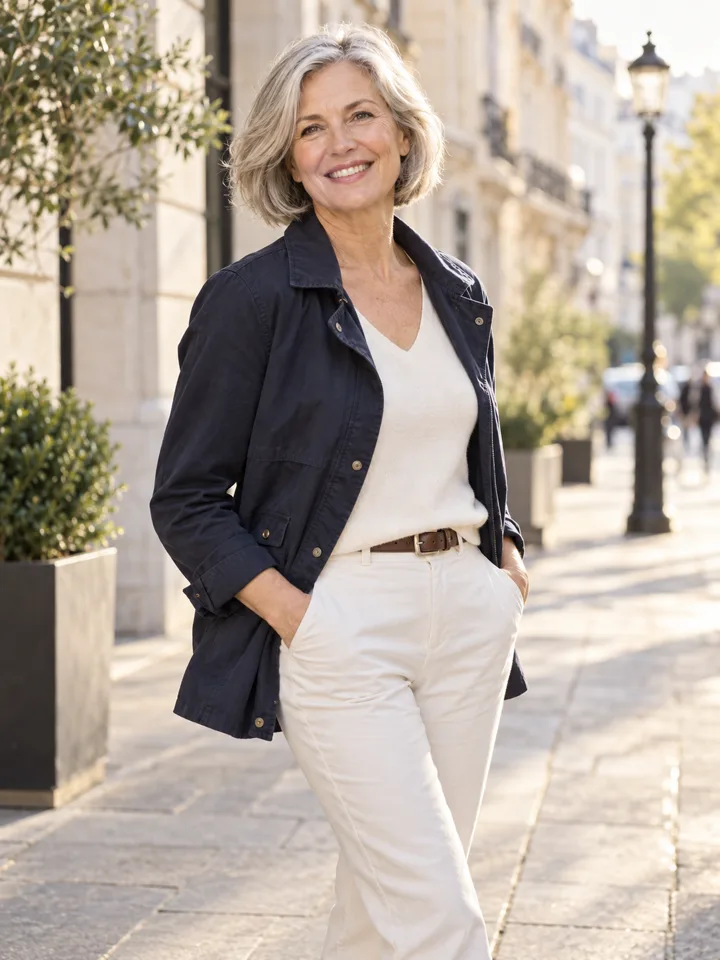
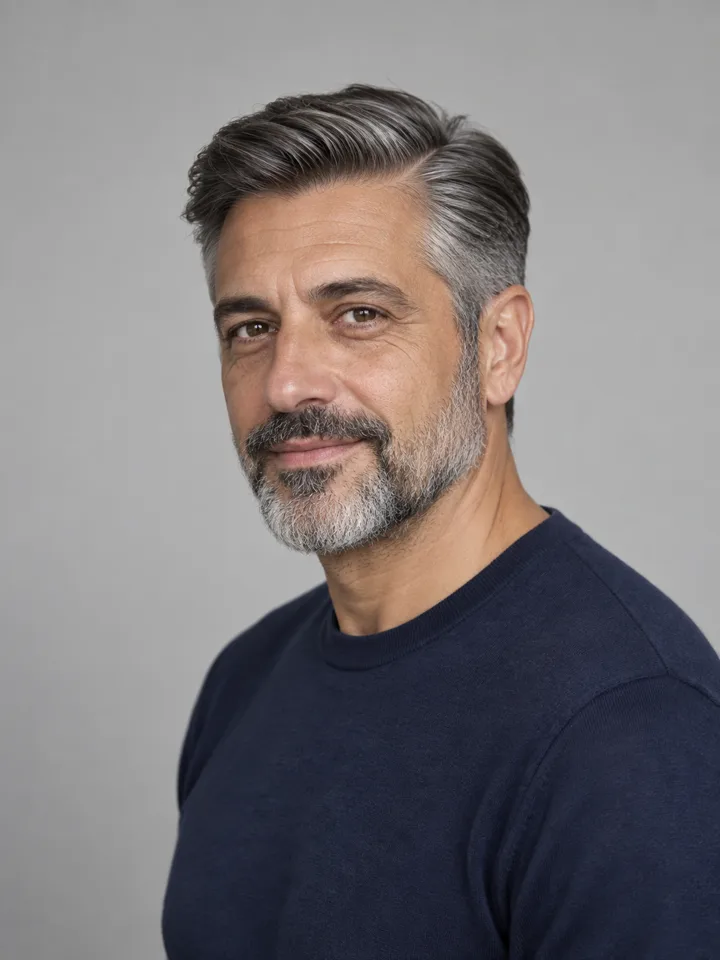
- Clean studio portrait — Compare the eyes, jaw, hairline and skin against the original. Crop for your intended profile size after reviewing.
- Warm studio — Check that warm background color does not unnaturally tint the face.
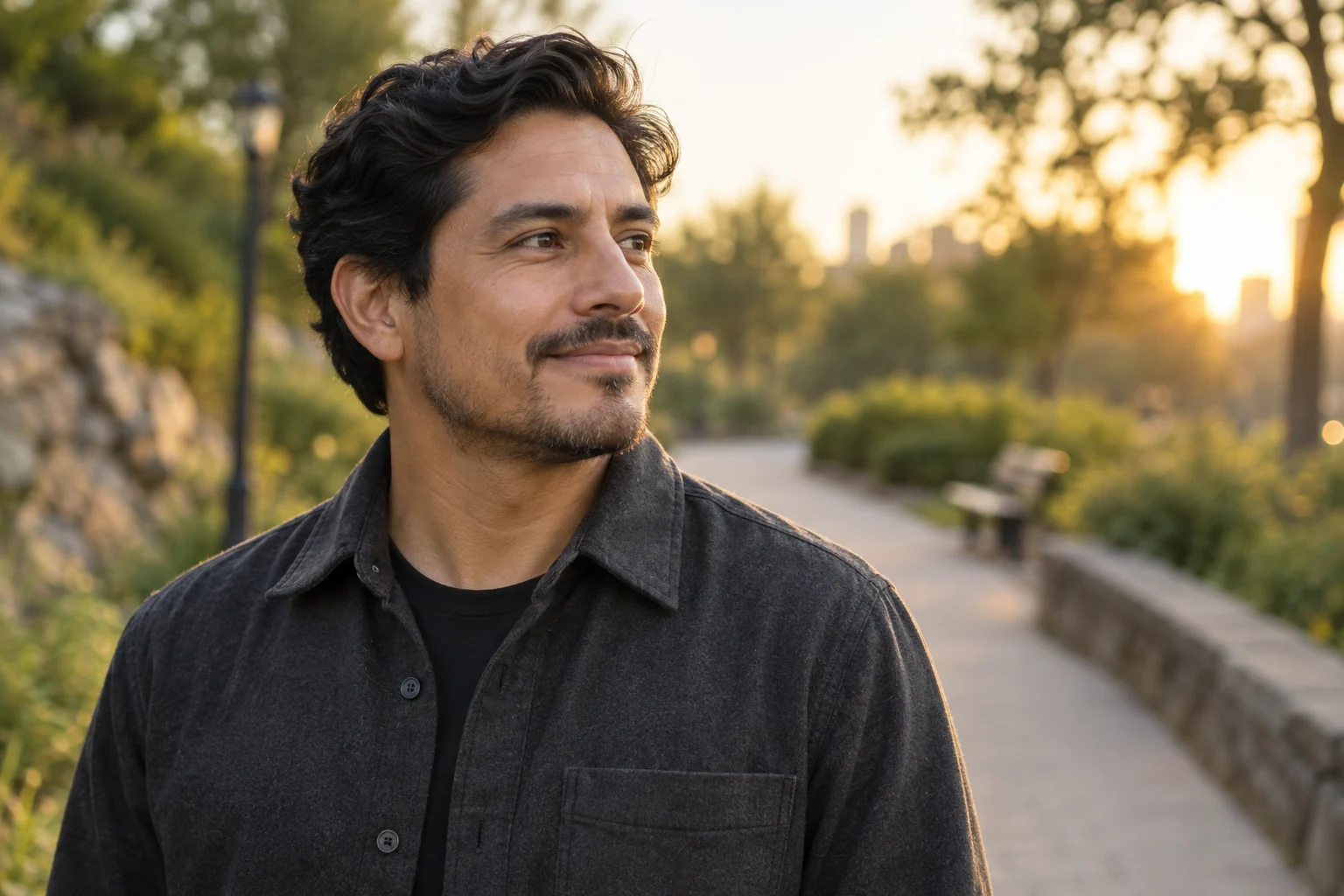
- Garden light — Inspect hair edges and ensure foliage does not cross the face.