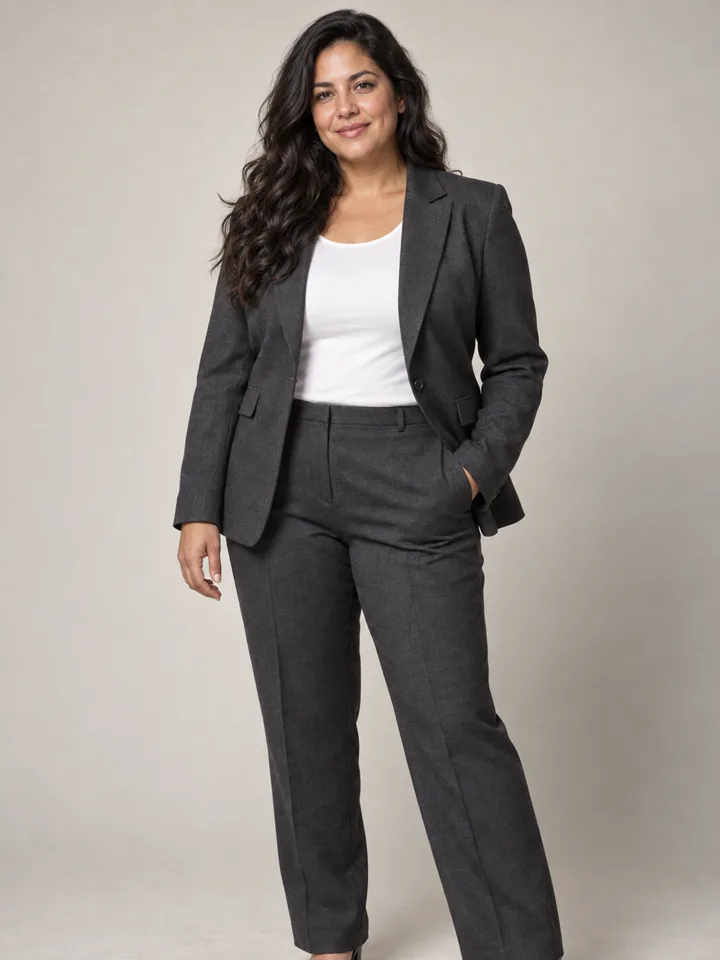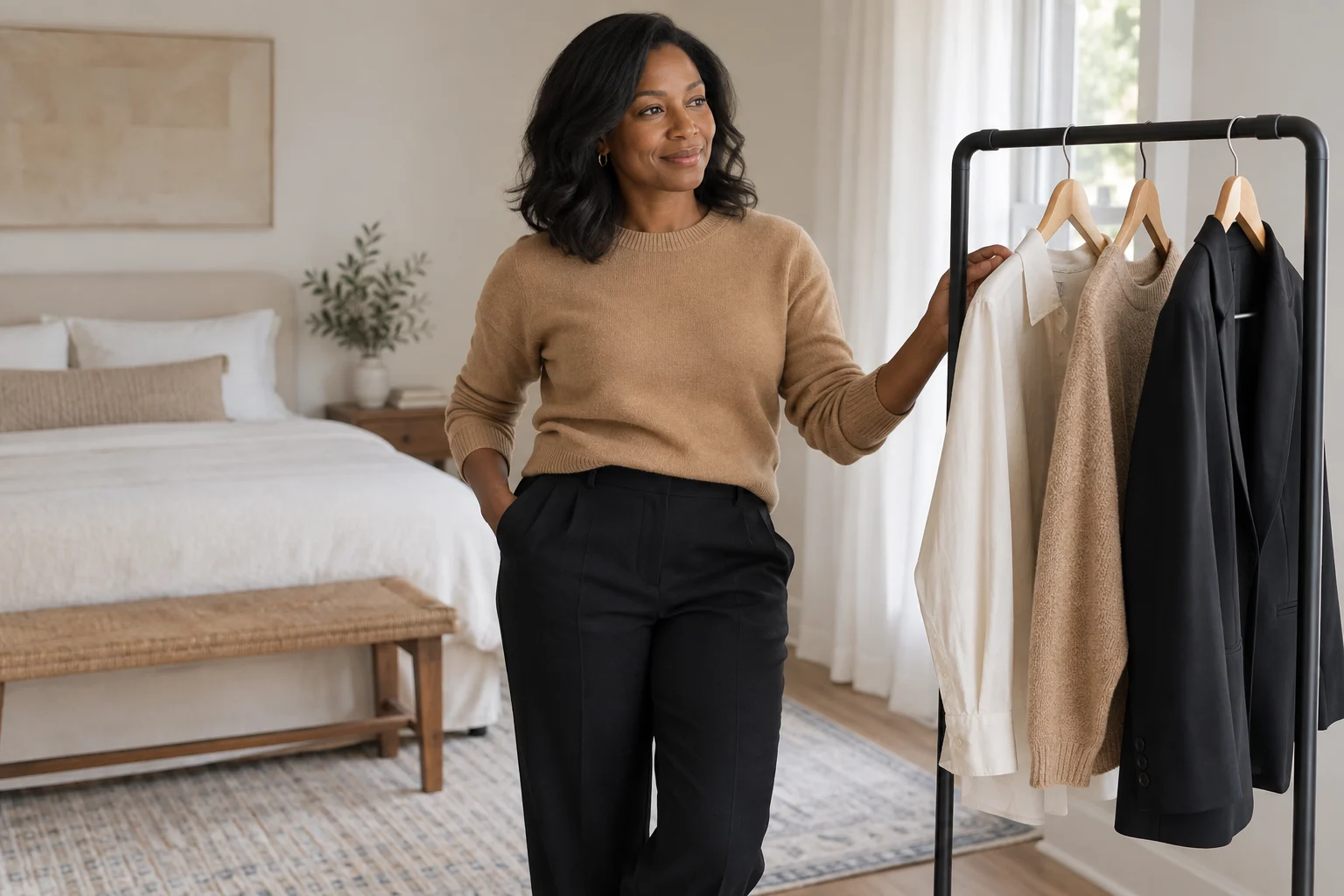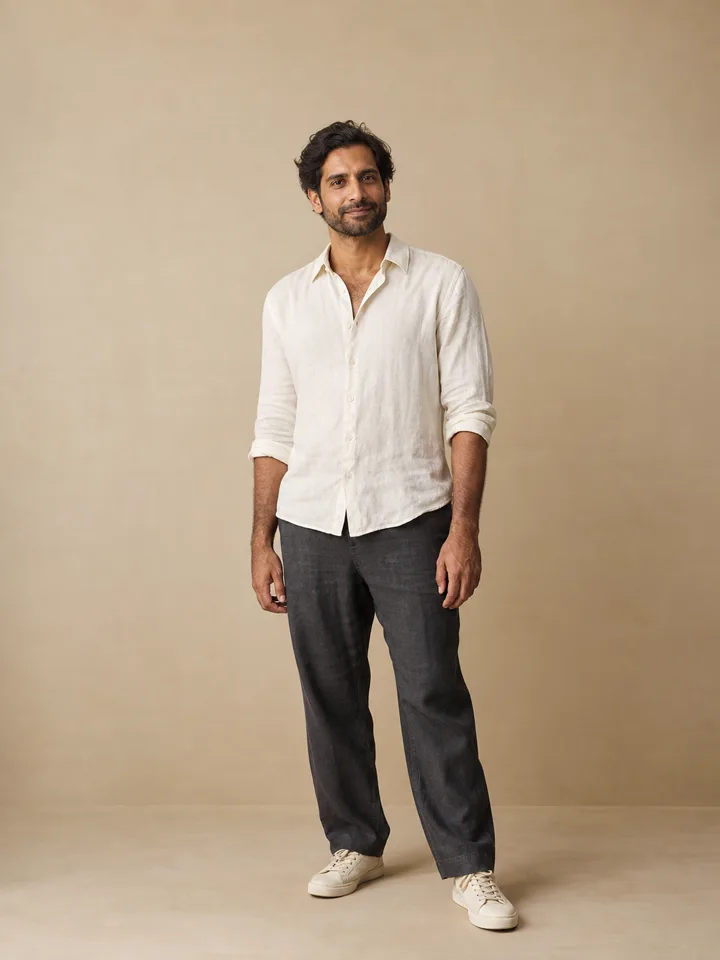
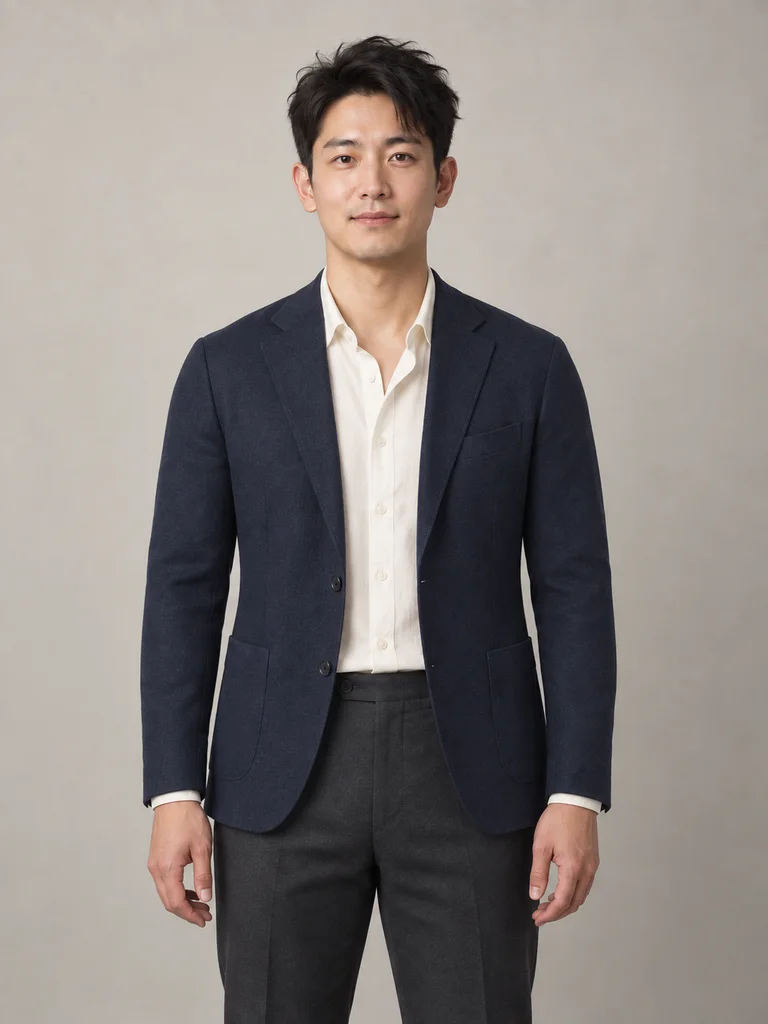
Quick answer
When preparing for a video interview on Zoom, Microsoft Teams, or Google Meet, your level of formality should be determined by the employer's industry and workplace culture, but your specific garment choices must be determined by how they render through a camera lens. An outfit that looks tailored, balanced, and professional in a bedroom mirror can easily become a major distraction on screen. Consumer webcams flatten three-dimensional depth, exaggerate high-contrast lighting, and struggle with tight geometric prints, turning what seemed like a safe wardrobe choice into distracting visual noise.
Clothing alone does not determine hiring decisions or interview outcomes. However, an uncalibrated outfit creates preventable friction: fine stripes can vibrate across the screen, dark fabrics can cause you to disappear into a high-backed office chair, and washed-out colors can make you appear underexposed under desktop ring lights. The goal of video interview attire is visual neutrality—presenting yourself professionally according to company standards while eliminating optical distractions so the interviewer stays focused on your responses. While personal styling tools can help you brainstorm color palettes and neckline shapes, they cannot evaluate real-world lighting or webcam optics. The only reliable way to confirm an outfit works is to test it directly on your camera setup before the call.
Who Should Use This Workflow (and When to Use Another Method)
This guide is designed for job candidates preparing for remote interviews across corporate, technology, non-profit, healthcare administration, and creative fields who need to bridge the gap between workplace dress codes and on-camera visual performance.
When to Follow This Workflow
- You know the company's general dress code (formal, business casual, or smart casual) but are unsure how your specific garments look through your webcam.
- You wear prescription glasses and need to prevent monitor reflection and ring-light glare from obscuring your eyes.
- You are interviewing against a home-office background and need to ensure adequate contrast between your clothing and the wall or chair behind you.
- You want to narrow down outfit colors and neckline cuts efficiently before pulling clothes from your closet.
When Another Method Is Safer
- Strict Institutional Uniforms or Regulatory Standards: If you are interviewing for military, specialized medical, legal judiciary, or law enforcement roles where specific uniforms or strict regulatory attire are mandated, follow the organization's published guidelines verbatim. Do not substitute alternative styling.
- Physical Garment Sizing and Fit Checks: If you need to know whether a physical suit jacket buttons comfortably or whether a blouse pulls at the shoulders, an AI image preview cannot assist you. Styling preview tools like LookScene do not provide garment sizing, exact-SKU try-on, or physical wardrobe tailoring. Physical fit must always be evaluated in person.
What to Hold Constant Before Comparing Options
Evaluating clothing options requires a controlled baseline. If you swap your shirt while simultaneously adjusting your desk lamp, shifting your chair, or opening a window blind, you cannot tell whether the visual change was caused by the fabric or by the altered environment.
Before evaluating different tops, lock in the following three technical variables:
+-------------------------------------------------------------------------+
|                    Controlled Camera Test Baseline                      |
+-------------------------------------------------------------------------+
| 1. Camera Height & Angle : Lens aligned at eye level; no upward tilting  |
| 2. Distance & Framing    : Mid-chest to top-of-head; 2-3 inches headroom |
| 3. Ambient Lighting      : Key light set 45° off-axis; backlights fixed  |
+-------------------------------------------------------------------------+
- Camera Position and Framing: Position your webcam or laptop at eye level using a stand or riser. Frame yourself in a standard medium close-up (bust shot), capturing from mid-chest to just above the head, leaving two to three inches of headroom. Tilting the camera upward distorts shoulder lines and collars.
- Lighting and Exposure: Keep your light sources consistent. If your interview takes place in the morning, conduct your test at that same time of day, or close your blinds and rely entirely on artificial lights to replicate consistent conditions. Avoid placing an unshaded lamp directly behind you.
- Background and Seating: Sit in the exact chair you will use during the interview. A dark black blazer against a high-backed black mesh office chair blends your body into the furniture, creating a "floating head" effect.
If you use a digital styling preview to brainstorm colors—such as using the LookScene Outfit Changer—hold your source photo constant. Upload a clear, forward-facing image with neutral lighting and your everyday hairstyle so that any differences you evaluate stem strictly from the garment style rather than shifting facial expressions or altered poses.
The 5-Step Outfit Decision and Camera Rehearsal Workflow
Follow this sequential workflow to move from employer research to a verified, camera-ready outfit.
[1. Context Research] ──> [2. Safe Palette Selection] ──> [3. Digital Exploration] ──> [4. Full-Outfit Assembly] ──> [5. Live Webcam Test]
Step 1: Establish Formality from Employer Context
Determine the employer's baseline expectations by examining their team page, public social media, and industry norms. Career advisors at Wharton's Communication Program suggest aiming for the upper boundary of the company's daily dress standard.
- Business Formal (Law, Finance, Executive Leadership): A tailored blazer or suit jacket paired with a collared dress shirt or structured shell. Ties remain customary in traditional legal and financial institutions.
- Business Casual / Smart Casual (Tech, Marketing, Consulting, Higher Ed): An unstructured blazer, fine-gauge knit sweater, tailored button-down, or blouse with a clean neckline.
- Creative / Casual (Early-stage Startups, Design Agencies): High-quality solid crewneck sweaters, collared overshirts, or structured polo shirts. Clean lines and solid construction take precedence over formal layering.
Step 2: Select Camera-Safe Colors and Fabrics
Webcam sensors have lower dynamic range than human eyes, meaning extreme lights and darks quickly lose detail.
- High-Performance Colors: Solid mid-tones and jewel tones perform best. Navy blue, slate gray, French blue, emerald green, burgundy, and warm teal contrast cleanly against skin tones and typical home backgrounds without overloading auto-exposure sensors.
- Colors to Avoid:
- Pure Stark White: Bounces light directly into the sensor, causing webcam auto-exposure to darken your face to compensate.
- Solid Pitch Black: Absorbs ambient light, obscuring lapels, collars, and seams, which can make you appear as an indistinct dark silhouette.
- Skin-Tone Nudes and Beiges: Blouses that closely match your skin tone can make you appear unclothed at a glance through small video thumbnails.
- Fabrics and Patterns to Avoid:
- The Moiré Effect: Avoid houndstooth, tight herringbone, micro-checks, and fine pinstripes. When fine repeating patterns interact with digital camera sensor grids, they generate shimmering, rainbow-colored interference patterns (moiré) whenever you move.
- Noisy Fabrics: Avoid stiff taffeta, crisp nylon, or layered heavy jewelry that rustles against your microphone when you breathe or shift.
Step 3: (Optional) Narrow Concepts with an AI Preview
If you are deciding between several color families or collar styles, an AI photo styling tool can help narrow your options. LookScene is an invitation-preview personal AI photo styling tool for adults using their own photos. It allows you to explore different hairstyles, outfits, and settings without redressing repeatedly.
When using LookScene during its free invitation preview (paid tiers are currently displayed as planned but unavailable):
- Upload a single, well-lit reference photo showing your current appearance.
- Test one specific garment variable at a time—such as comparing a navy blazer against an olive knit sweater.
- Treat the generated results as an editorial brainstorming tool to visualize color contrast against your hair and skin.
- Do not treat the preview as a guarantee: LookScene does not guarantee exact fabric texture, precise garment sizing, or exact real-world likeness. Use it solely to eliminate unflattering colors or awkward neckline cuts before pulling physical items from your wardrobe. If you are also updating static profile images, consult our guide on what to wear for a LinkedIn photo to understand how still-portrait standards differ from live-video requirements.
Step 4: Assemble the Complete, Head-to-Toe Outfit
A common remote interview mistake is dressing only from the waist up. As reported by the Associated Press regarding virtual workplace mishaps, candidates routinely encounter unexpected interruptions—a pet knocking over a lamp, an urgent knock at the door, or the need to adjust a router—that force them to stand up unexpectedly.
Dressing completely in professional trousers or a skirt, along with appropriate footwear, prevents embarrassing accidents. Beyond emergency readiness, wearing a complete outfit reinforces professional posture and focus throughout the call.
Step 5: Conduct the Live Camera Rehearsal
Thirty minutes before your call—or the preceding day at the same hour—launch your video software (Zoom, Teams, or Google Meet) and inspect your image:
- Check Background Separation: Ensure your shirt does not blend into the wall or your chair. If your wall is light gray, wear navy or deep green.
- Check for Glasses Glare: If you wear eyeglasses, adjust your desk lighting. Position ring lights or softboxes slightly higher and angled 45 degrees to the side rather than directly behind the camera to prevent distracting white rings from reflecting across your lenses.
- Check Collar and Headset Clearance: If you use an over-ear headset or lapel microphone, verify that the wire or boom does not rub against your collar, buttons, or lapels, which creates loud static on the call.
Decision Matrix: Evaluating Camera-Ready Attire
Evaluate your proposed interview outfit against this standard verification matrix:
| Evaluation Dimension | Camera Requirement | Pass Condition | Reject / Adjust Condition |
|---|---|---|---|
| Color & Exposure | Mid-tone solid colors (navy, slate, jewel tones) | Face is evenly lit; garment texture and seams remain visible | Blown-out white highlights; shirt blends into skin or dark shadows |
| Pattern Stability | Plain weaves, solid knits, broad textures | Fabric remains visually stable when you move or gesture | Shimmering moiré rainbow distortion; visual buzzing on camera |
| Background Contrast | Clear visual separation from walls and seating | Distinct silhouette between shoulders and background | Outfit blends into chair back or wall paint |
| Eyewear & Lighting | Anti-reflective clarity; visible eyes | Interviewer can clearly see your eyes through lenses | Ring-light circles or screen glare completely obscuring pupils |
| Audio Compatibility | Smooth, quiet fabrics around neck and chest | Zero rustling sounds when shifting posture or gesturing | Lapel mic or headset cable rubs audibly against rough fabric |
How to Identify and Reject Unusable Results
Whether reviewing a generated preview from an AI styling tool or inspecting your live webcam feed, apply strict rejection criteria before finalizing your choice.
[Evaluate Image] ──> Check Identity Drift? ──> Check Moiré Distortion? ──> Check Background Bleed? ──> [Approve / Reject]
1. Rejecting Misleading Digital Previews
When using AI styling tools to explore wardrobe concepts, reject any generated output that:
- Alters Facial Identity or Age: If the tool smooths away distinctive features, alters your jawline, or modifies your facial proportions, reject the image. LookScene does not provide identity preservation guarantees. If an image does not look unmistakably like you, it is useless as a personal reference.
- Invents Impossible Garment Physics: Generative tools frequently invent asymmetric lapels, floating buttons, or unwearable fabric drapes. Use the tool only to assess broad color and style directions, not as an exact blueprint.
2. Rejecting Unsuitable Camera Test Frames
During your live webcam rehearsal, reject an outfit combination if:
- Auto-Exposure Flutters: If moving your hands into the frame causes your camera's auto-exposure to dramatically darken or brighten the background, your top is creating too much contrast with the room. Swap it for a more neutral mid-tone.
- Digital Background Artifacts Appear: If you plan to use a subtle background blur, check your shoulders and hair. Stiff collars, loose scarves, and busy patterns confuse edge-detection algorithms, creating jagged, shimmering halos around your neck and shoulders. A clean, structured collar provides the sharpest edge separation.
Trade-Offs, Product Limits, and Real-World Verification
Achieving a polished video presence involves navigating practical trade-offs between personal style, in-person elegance, and technical camera constraints.
- In-Person Texture vs. Digital Compression: An intricate tweed blazer or fine houndstooth sport coat may look exceptional in an office hallway. On a 720p or 1080p compressed video stream, however, video codecs compress those fine details into blocky artifacts. Choosing a simpler, less textured fabric is often necessary for digital clarity.
- Lighting Comfort vs. Lens Clarity: Direct frontal ring lights illuminate facial expressions effectively but produce severe reflections on prescription glasses. Moving lights higher and off-axis reduces glare on glasses but may introduce slight shadows under the chin. Balancing light placement requires physical experimentation in your room.
- LookScene Capabilities and Limits: LookScene is an invitation-preview tool designed strictly for adults exploring personal styling concepts using their own photos. It does not provide human fashion styling, team administration, wardrobe inventory management, or exact-SKU virtual try-on. It does not guarantee that generated hair, clothing, or body proportions will match physical reality. Paid packages remain unavailable during the current free preview.
Ultimately, digital tools are brainstorming aids. Real-world verification on your physical hardware remains the sole method for guaranteeing a trouble-free visual presentation on interview day.
Pre-Interview Camera Checklist and Next Step
Before logging into your video interview, complete this final inspection:
[ ] 1. Employer Alignment : Formality matches or slightly exceeds company norms.
[ ] 2. Solid Color Choice : Wearing mid-tone solids; no stark white, flat black, or skin-tone beiges.
[ ] 3. Moiré-Free Fabric  : No fine stripes, micro-checks, or tight repeating patterns.
[ ] 4. Background Clear   : Outfit clearly contrasts with your chair and the wall behind you.
[ ] 5. Glare Mitigated    : Desk lights positioned to eliminate reflections across eyeglasses.
[ ] 6. Full Outfit Worn   : Professional trousers and shoes worn in case you must stand.
[ ] 7. Audio Verified     : Collars and jewelry do not rub against microphone cables.
Next Step
Select your top two physical outfit candidates from your closet. Set up your laptop in your interview space, open your video software, and record a 30-second test video of yourself speaking. If you want to explore whether a jewel-tone blouse or a structured blazer complements your complexion before pulling items from storage, you can test a single controlled change in LookScene during its free invitation preview, keeping your reference photo consistent. Then, verify the physical garment on your webcam to ensure complete visual clarity.