Quick answer
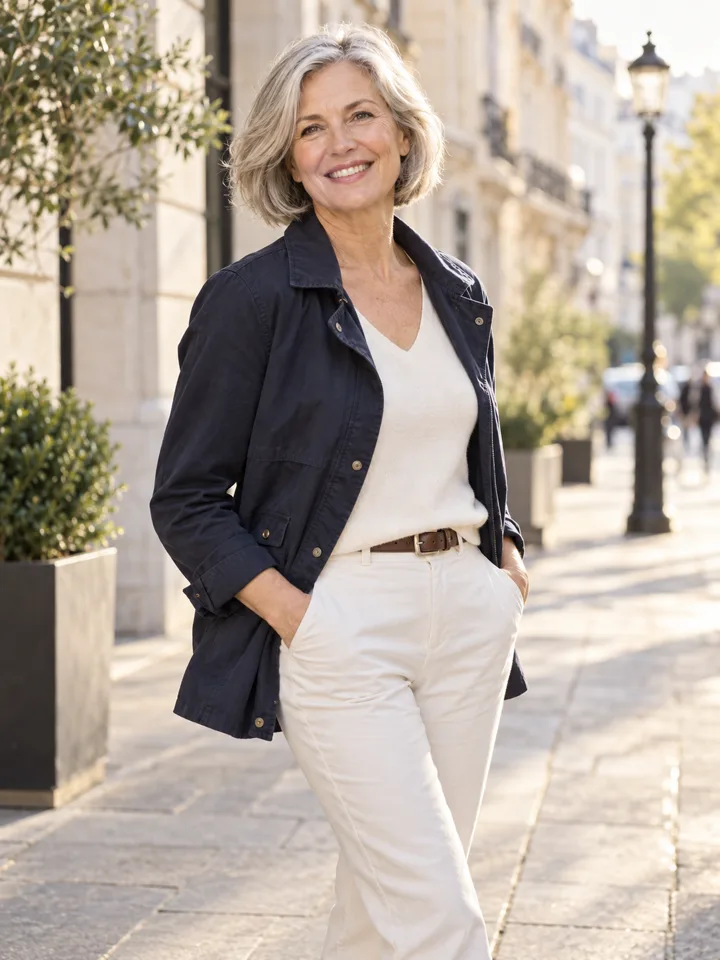
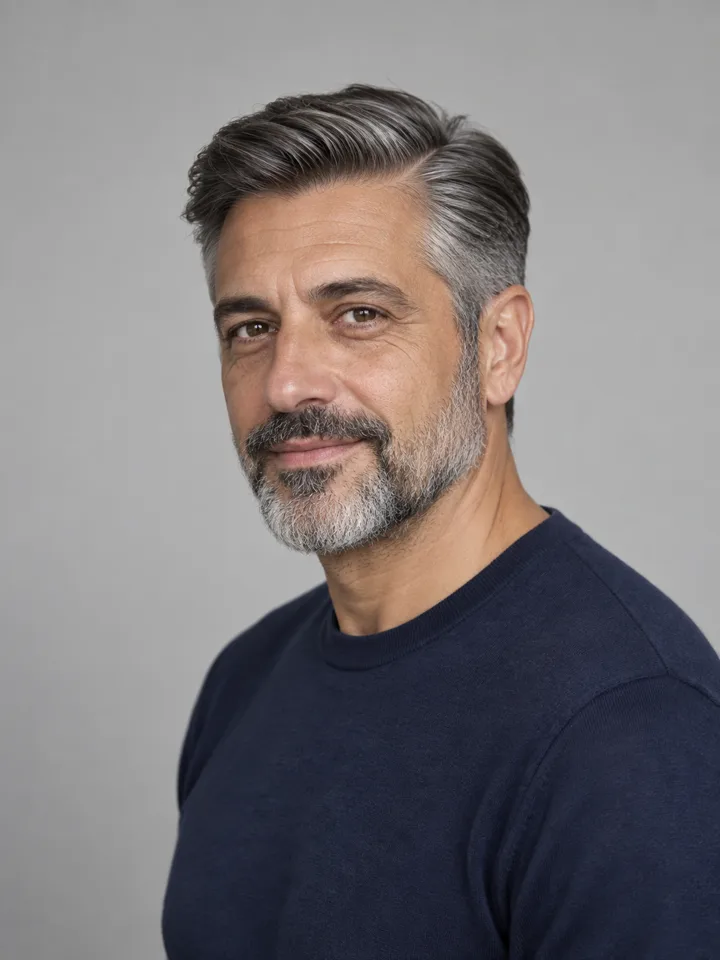
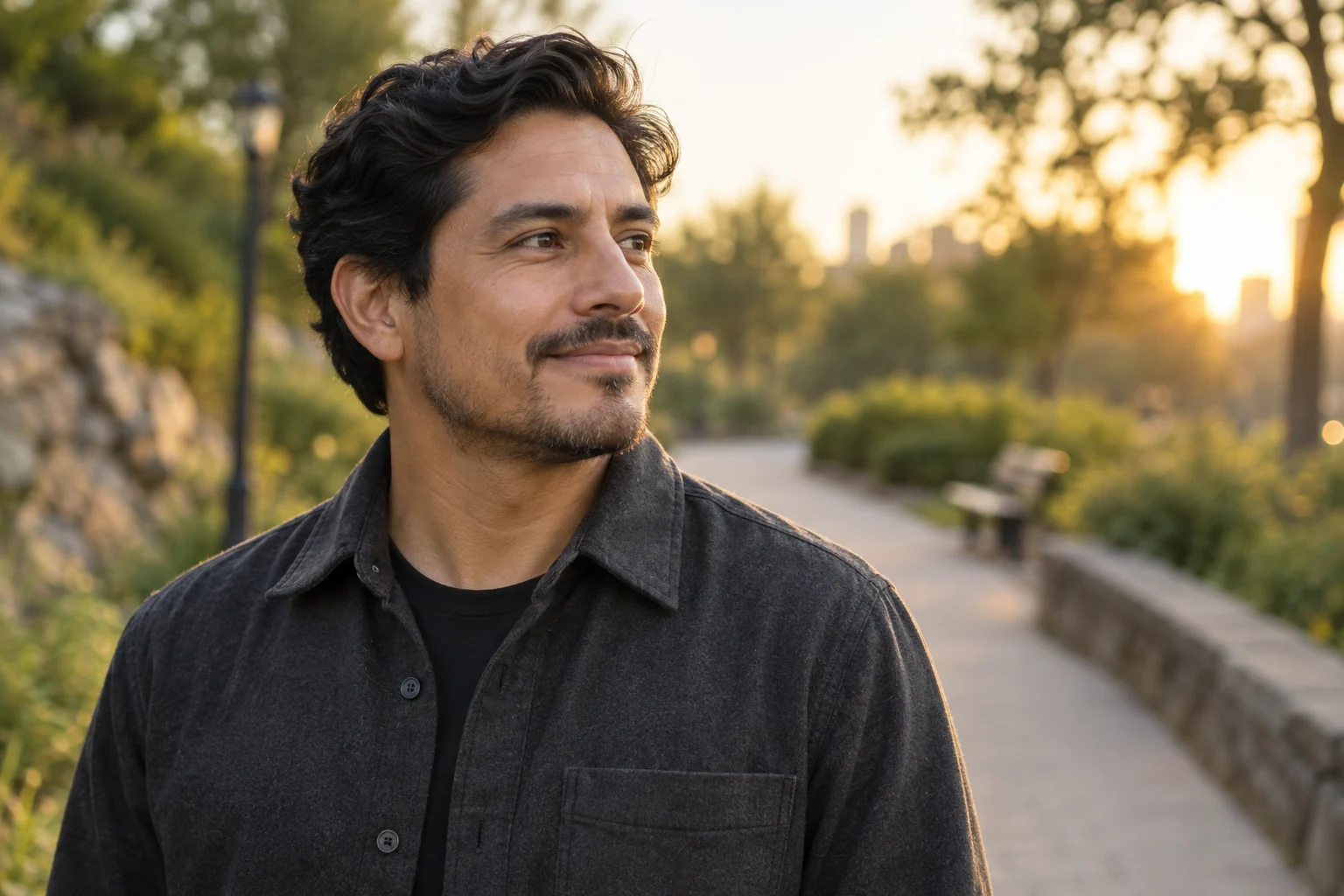
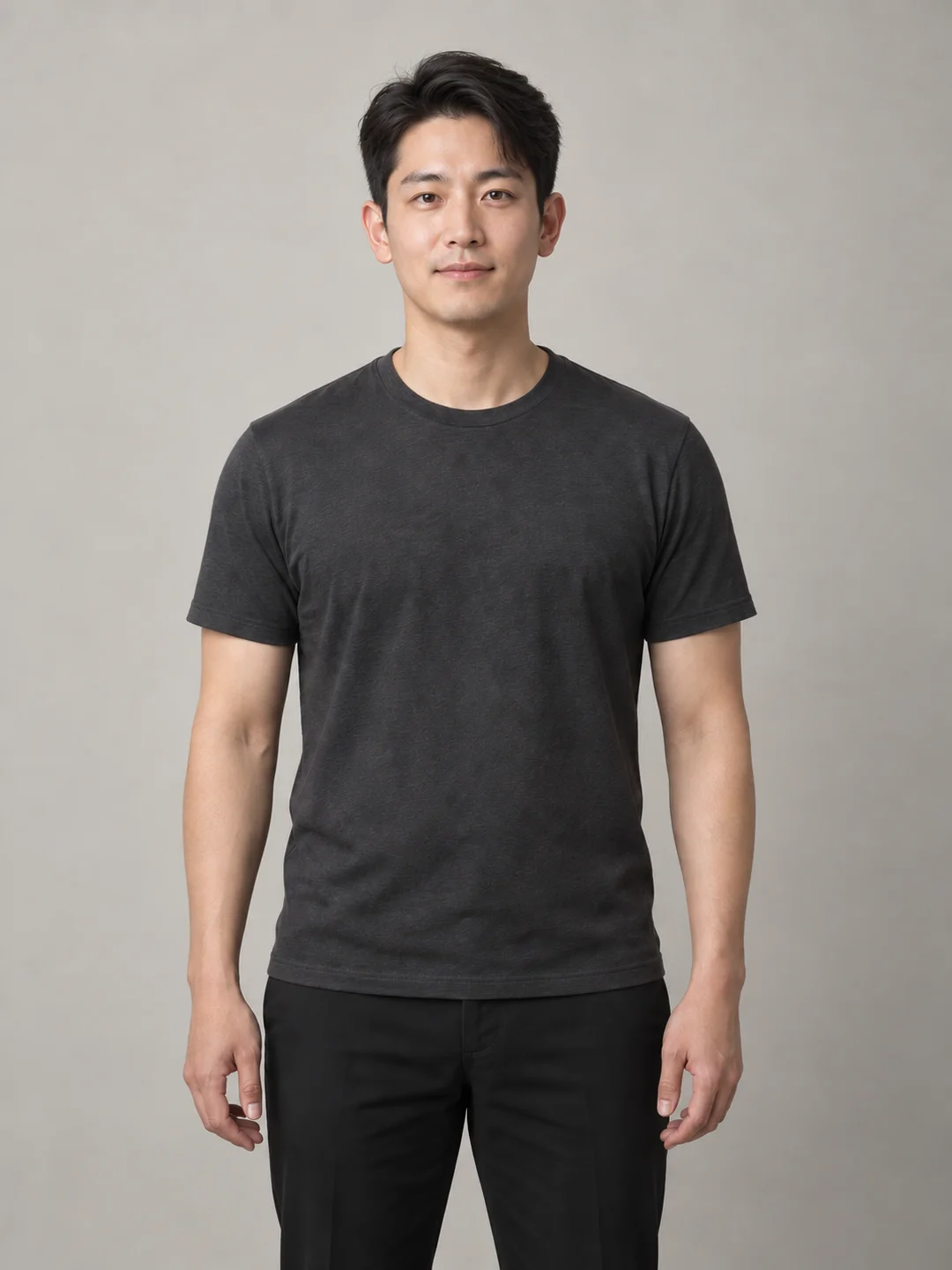
To satisfy Upwork’s profile picture requirements, you must upload a genuine, recent, and recognizable photograph of yourself. The image must clearly display your head and shoulders, feature a centered, unobstructed view of your face, and remain completely free from digital alterations, artificial intelligence generation, logos, borders, or watermarks. Upwork displays this image inside a circular frame across search results, proposals, and direct client contracts, making clean composition and authentic presentation essential from day one.
This guide provides a practical, step-by-step framework to help freelancers take, crop, and review an Upwork-compliant profile picture at home. It details the platform's official standards, explains the technical file parameters and update workflow, and establishes clear reject criteria. Crucially, it addresses why generative AI replacements and synthetic headshots create severe operational risks on Upwork—including account suspension and identity verification failure—and how to ensure your profile photo establishes immediate client trust.
1. Upwork’s Official Profile Picture Rules: The Compliance Baseline
Upwork operates as an open talent marketplace where financial transactions, contractual agreements, and client collaboration depend on verified identities. Consequently, the platform enforces explicit standards for profile imagery.
According to Upwork Support's guide on choosing a good profile picture and official Upwork Resources, your profile photo must satisfy five non-negotiable rules:
- A Real, Recent Likeness: The photo must be an accurate representation of how you look today. It cannot be a childhood photo, an outdated picture from a decade ago, or a stock image.
- Head and Shoulders Composition: The framing should focus on your head and the top of your shoulders. Full-body shots place your face too far away to be identifiable on mobile screens, while extreme close-ups cut off natural head contours.
- Unobstructed Facial View: Your face must be sharply focused and fully visible. Sunglasses, heavy shadows, novelty masks, and distracting filters are strictly prohibited. Eyeglasses with clear lenses and religious headwear are fully permitted, provided your facial features remain visible.
- Solo Subject Only: The frame must contain only you. Group pictures, family snapshots, photos with pets, or images featuring colleagues will be rejected by platform moderators.
- No Graphics, Text, or Badges: You may not add agency logos, service watermarks, decorative frames, contact information, or fake "Top Rated" banners to the image.
Failing to meet these criteria can lead to automated profile submission rejections or manual review flags that delay your ability to submit proposals.
2. Why AI-Generated Headshots Are the Wrong Tool for Upwork
With the rise of generative imaging tools, many freelancers consider using AI-generated headshots to bypass the friction of a traditional photo shoot. On Upwork, this approach introduces acute business and account risks.
Upwork explicitly disallows AI-generated profile photos, digital illustrations, 3D avatars, and synthetic portraits in place of a genuine personal photograph. The platform couples profile reviews with rigorous identity verification procedures. During onboarding or routine compliance checks, freelancers are frequently required to complete visual identity verification, which includes submitting a government-issued photo ID and participating in a live video verification call or automated biometric liveness scan.
As highlighted in community discussions on Reddit r/Upwork, significant discrepancies between a profile picture, a government ID, and a live webcam feed routinely trigger verification holds, profile freezes, or permanent account termination under Upwork’s Terms of Service. When an AI tool alters bone structure, smooths skin beyond natural texture, or generates an idealized facial likeness, it undermines your ability to pass identity checks. Furthermore, clients expect the person who appears on their initial Zoom or Upwork video consultation to match the individual pictured on the proposal.
The Boundary of AI Styling Tools
Personal AI styling tools can serve useful exploratory functions, but their limits must be clearly understood:
- What Styling Tools Do: Tools such as LookScene operate as invitation-preview personal AI photo styling tools for adults using their own photos. They allow users to explore hairstyle ideas, outfit combinations, and portrait settings in a private sandbox.
- What Styling Tools Do Not Do: LookScene does not provide garment sizing, exact-SKU virtual try-on, wardrobe management, human styling, team administration, or guarantees that generated details match real-world hair, fabric, body proportions, or facial identity. Paid packages are displayed as planned but are not available during the current free invitation preview.
- The Rule of Use: Generated images from any AI styling tool are editorial illustrations, not identity documents. You should never upload an AI-generated image to your Upwork profile. If you use styling tools, limit their use to brainstorming wardrobe colors or lighting styles before taking your real camera photo.
3. Technical File Specifications and the Circular Crop
Before uploading your photo to Upwork, ensure your image file satisfies the platform's technical limits and visual framing constraints.
Platform File Parameters
- Supported Formats: JPG, PNG, or GIF (static GIF only; animated files are not supported).
- Maximum File Size: 5 MB.
- Recommended Dimensions: While Upwork accepts images starting at 250×250 pixels, upload a square image between 400×400 pixels and 1000×1000 pixels. This ensures sharpness on high-density Retina and mobile displays without exceeding upload size limits.
- Aspect Ratio: 1:1 square upload, displayed as a circle.
Managing the Circular Crop
Upwork requires a square upload, but renders the final image inside a circular mask across client feeds. Many freelancers upload images framed too tightly, resulting in the circular mask cutting off the crown of their head, ears, or chin.
When preparing your crop:
- Maintain at least 15–20% buffer space between the edge of your head/hair and the outer boundaries of the square image.
- Center your eyes along the upper horizontal third of the frame.
- Ensure both shoulders are visible at the bottom of the crop to ground the portrait.
For detailed framing methods and aspect ratio templates, see LookScene’s guide on cropping profile photos for circle and square displays.
4. How to Update Your Profile Picture on Upwork
Updating your photo takes less than two minutes within the Upwork desktop or mobile browser interface:
- Navigate to Your Profile: Log in to your Upwork freelancer account, select your profile avatar in the upper navigation bar, and click Profile.
- Open the Photo Editor: Hover over your existing profile picture (or placeholder icon) and click the pencil icon.
- Upload the File: In the modal dialog, select Upload Photo and choose your prepared square image file.
- Adjust Framing and Zoom: Use the built-in slider to adjust zoom. Drag the circular preview overlay to position your face directly in the center. Verify that your hair and chin remain fully inside the circular boundary.
- Save and Confirm: Click Save. Your new image will update across your profile.
Note: If your account is newly created or flagged for standard security screening, updating your photo may trigger a prompt to re-verify your identity. Keep a valid government ID accessible.
5. Step-by-Step: Capturing an Upwork-Compliant Photo at Home
You do not need an expensive commercial studio or professional camera to produce a compliant, high-trust headshot. A modern smartphone camera is fully sufficient if you control lighting, distance, and background.
Follow this five-step capture workflow:
[ Step 1: Set Camera Height ] ──> [ Step 2: Position Lighting ] ──> [ Step 3: Clean Background ]
                                                                             │
                                                                             ▼
[ Step 5: Verify & Crop ]     <── [ Step 4: Capture Expressions ] <──────────┘
Step 1: Set Camera at Eye Level
Prop your smartphone or camera on a stable tripod or solid shelf 3 to 5 feet away from you. Never shoot from a low angle looking up, and avoid high-angle handheld selfies, which distort facial geometry and display raised arm angles. Set the lens exactly at eye level. Use a 2-second or 10-second camera timer, or a Bluetooth shutter remote, so you can relax your posture.
Step 2: Establish Soft, Frontal Lighting
Position yourself facing an indirect natural light source, such as a large window without direct sunbeam glare. Natural daylight provides soft, even illumination that fills shadows under the eyes and nose.
- Avoid Backlighting: Never sit with your back to an unshaded window or bright light fixture; this silhouetted effect obscures your facial features.
- Avoid Harsh Overhead Light: Standard ceiling lights create unflattering downward shadows. If shooting in the evening, use two diffused desk lamps positioned at 45-degree angles to your face.
Step 3: Choose a Plain, Neutral Background
Stand 2 to 3 feet in front of a clean, uncluttered background. A plain wall painted in a neutral tone (off-white, light gray, muted blue) or a tidy, soft-focus home office setting works best. Stepping away from the wall prevents harsh flash shadows from casting behind your head and creates natural separation.
Step 4: Dress Professionally and Frame Naturally
Wear solid-colored clothing that contrasts slightly with your background. Avoid complex, high-contrast patterns (such as tight houndstooth or thin stripes), which can create visual moiré distortion on digital screens. Adopt a comfortable, upright posture, look directly into the camera lens, and use a pleasant, professional facial expression.
Step 5: Inspect, Square-Crop, and Check Margins
Review your shots on a computer monitor rather than a small phone screen. Select the sharpest image where your eyes are in crisp focus. Crop the image to a 1:1 square ratio, ensuring your head and shoulders remain centered with adequate border margins.
6. Decision Matrix: Pass vs. Reject Criteria
Before uploading your selected capture to Upwork, audit the image against this verification rubric:
| Inspection Category | Verification Requirement | Pass Condition | Immediate Reject Condition |
|---|---|---|---|
| Likeness & Origin | Genuine personal identity | Unaltered camera capture matching current appearance | AI-generated replacement, face-swap, digital illustration, or image older than 3 years |
| Facial Visibility | Clear, unobstructed features | Sharp focus across eyes, nose, and mouth; clear glasses | Dark sunglasses, heavy shadow masks, medical masks, decorative stickers, or motion blur |
| Framing & Crop | Head-and-shoulders composition | Head and top of shoulders centered; ample border margins | Full-body shot, extreme macro crop, or chin/hair clipped by circular mask |
| Subject Count | Solo freelancer portrait | Individual freelancer only in frame | Group photo, cropped arm from another person, pet, child, or object placeholder |
| Overlays & Text | Clean photographic frame | Pure photo with natural background | Agency logos, contact details, promotional text, watermarks, or artificial badges |
| Lighting & Contrast | Balanced illumination | Evenly lit face with visible eye catchlights | Blown-out highlights, dark silhouettes, or extreme colored ambient backlighting |
7. Common Mistakes and Practical Trade-Offs
When preparing your Upwork photo, watch out for five frequent missteps:
- The Casual Crop-Out: Taking a favorite group photo from a wedding or vacation and cropping out friends. This leaves stray hands, mismatched lighting, or awkward shoulder angles in your profile circle, signaling amateur execution.
- Aggressive Digital Smoothing: Using mobile beauty filters that erase skin pores, sharpen irises artificially, or modify jawlines. Over-filtered photos trigger client skepticism and risk verification flags during live onboarding calls.
- The Circular Mask Surprise: Framing the head to touch the very top edge of a square image. When Upwork applies its circular mask, the top of your head and sides of your hair are cut off, producing an awkward, cramped thumbnail.
- Distracting Background Clutter: Capturing open closets, kitchen counters, or busy public spaces. Your face should be the immediate focal point of the thumbnail.
- Over-Formal vs. Over-Casual Clothing: While you do not need a three-piece suit unless you operate in corporate finance or legal consulting, wearing gym wear or beachwear harms perceived professionalism. Clean smart-casual attire represents the safe baseline for the vast majority of freelance categories.
8. Frequently Asked Questions
Can I use an AI headshot generator if the result looks remarkably like me?
No. Upwork’s terms require an authentic, unaltered photographic likeness. Even high-end generative headshots introduce subtle facial distortions, unnatural hair strands, or fabric anomalies. If your account is flagged for visual identity verification, an artificial portrait can lead to profile suspension.
Does Upwork require photos taken by a professional photographer?
No. Upwork requires that your photo be clear, professional, and compliant with framing standards. A sharp smartphone photo taken against a clean wall with good window light meets all requirements.
What should I do if my profile photo is rejected during verification?
Review the rejection notice. Most rejections stem from poor lighting, obstructed eyes, an uncentered crop, or the presence of text/watermarks. Reshoot in bright, indirect daylight, framing from the chest up, and re-upload an unedited JPEG or PNG.
Can I wear hats, religious coverings, or glasses in my photo?
Eyeglasses with clear lenses and religious head coverings (such as hijabs, turbans, or yarmulkes) are fully permitted, provided they do not cast heavy shadows over your eyes or obscure your facial contours. Baseball caps, beanies, and sunglasses are not allowed.
9. Final Review Checklist and Practical Next Action
Before submitting your profile photo:
- Captured on a real camera or smartphone (no AI generation or illustration).
- Shot within the last 12 months, reflecting your current hairstyle and look.
- Head and shoulders centered with a 15–20% safety margin for the circular crop.
- Eyes open, looking at the camera, with no sunglasses or harsh shadows.
- Plain, neutral, or softly blurred background free from clutter.
- No logos, text overlays, frames, or promotional badges.
- Saved as a square JPG or PNG under 5 MB (minimum 400×400 px).
Practical Next Step
Set up your smartphone at eye level in front of a window, capture 5 to 10 natural frames using a timer, and select the sharpest photo that reflects your authentic professional self. Upload the image directly through your Upwork Profile Settings, verify the circular crop margins, and proceed to client proposals with confidence.